
1.1 Manage Tasks and Subtasks in To-Dos
The Task tab in To-Dos helps project teams create, assign, and track task-based work in one place. You can create tasks, add subtasks, set due dates, attach files, add locations, and link tasks to related submissions or activities.
Tasks can be reviewed in Board or Table view, so teams can manage work by status, assignee, due date, linked item, or recent updates.
In this article
- Who usually uses To-Dos?
- Create a task
- Work with subtasks
- Collaborate on tasks
- Duplicate a task
- Use board view
- Use table view
- Filter and sort tasks
- Link tasks to submissions or activities
- Typical workflow
Who usually uses To-Dos?
Project managers and admins use To-Dos to organize work, assign tasks, review progress, and follow up on overdue items.
Team members use To-Dos to view assigned work, update task status, manage subtasks, add files or notes, and keep project work moving.
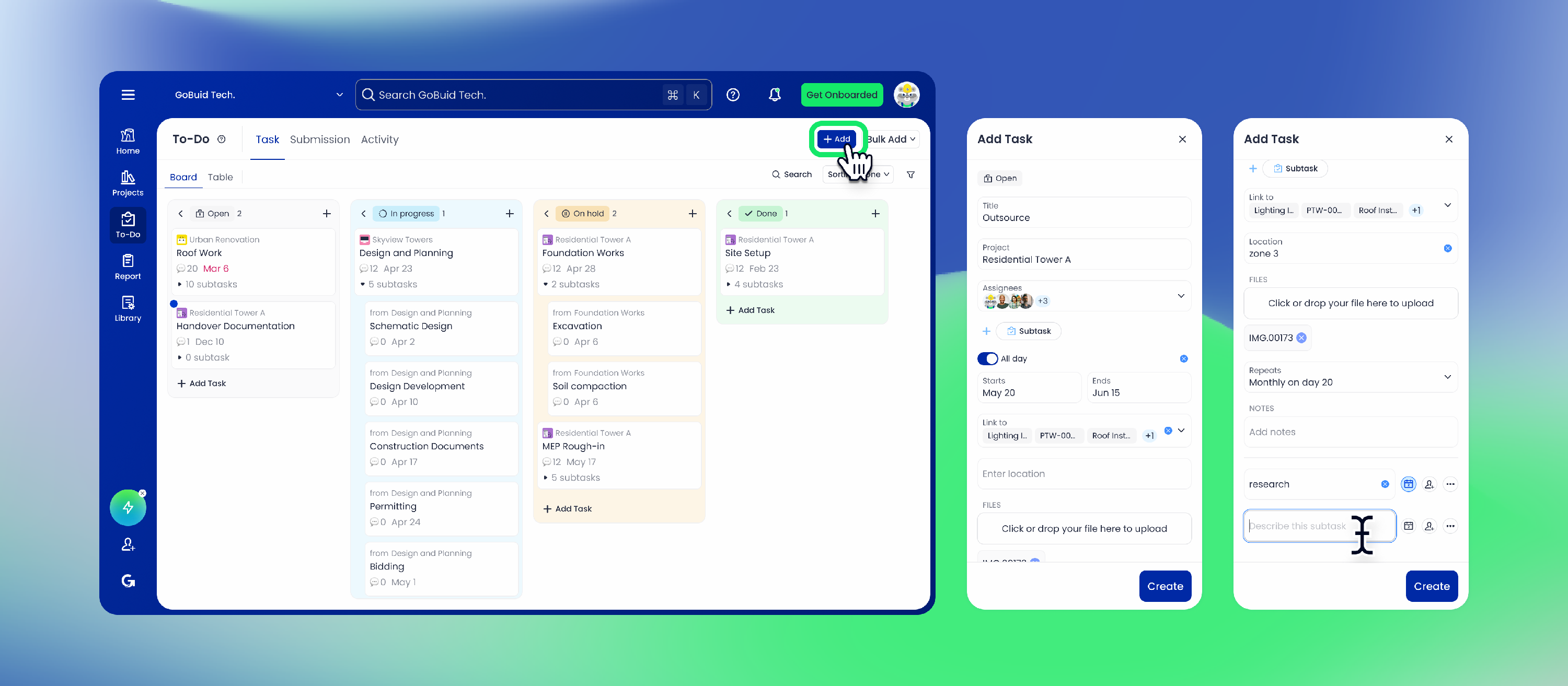
Create a task
Any user can create a task for a project.
When you create a task:
- The project is automatically set to the most recently viewed project.
- The creator is added as an assignee and cannot be removed.
- The due date is initially set to today, with all day turned on.
Optional task fields include:
- Due
- Link to
- Location
- Files
- Repeats (Beta)
- Notes
- Subtasks
Work with subtasks
A Subtask is a smaller work item under a task. Subtasks help break a task into smaller steps while keeping everything connected to the main task.
Users involved in a task can:
- Add subtasks
- Edit subtasks
- Delete subtasks
- Update subtask status
- Assign subtasks independently
Only the subtask name is required. All other subtask fields are optional.
Task completion is not controlled by subtask completion. A task can be completed even if some subtasks are still open.
Collaborate on tasks
All users related to a task can add, edit, delete, and change the status of the task and its subtasks.
Tasks and subtasks use these statuses:
- Open
- In progress
- On hold
- Done
Duplicate a task
You can duplicate an entire task, including:
- Subtasks
- Assigned members
- Scheduled times
- Location
The duplicated task is named with (copy) added to the original task name.
You can also choose a destination project for the duplicated task. If an assignee is not part of the destination project, that assignee is excluded from the duplicated task.
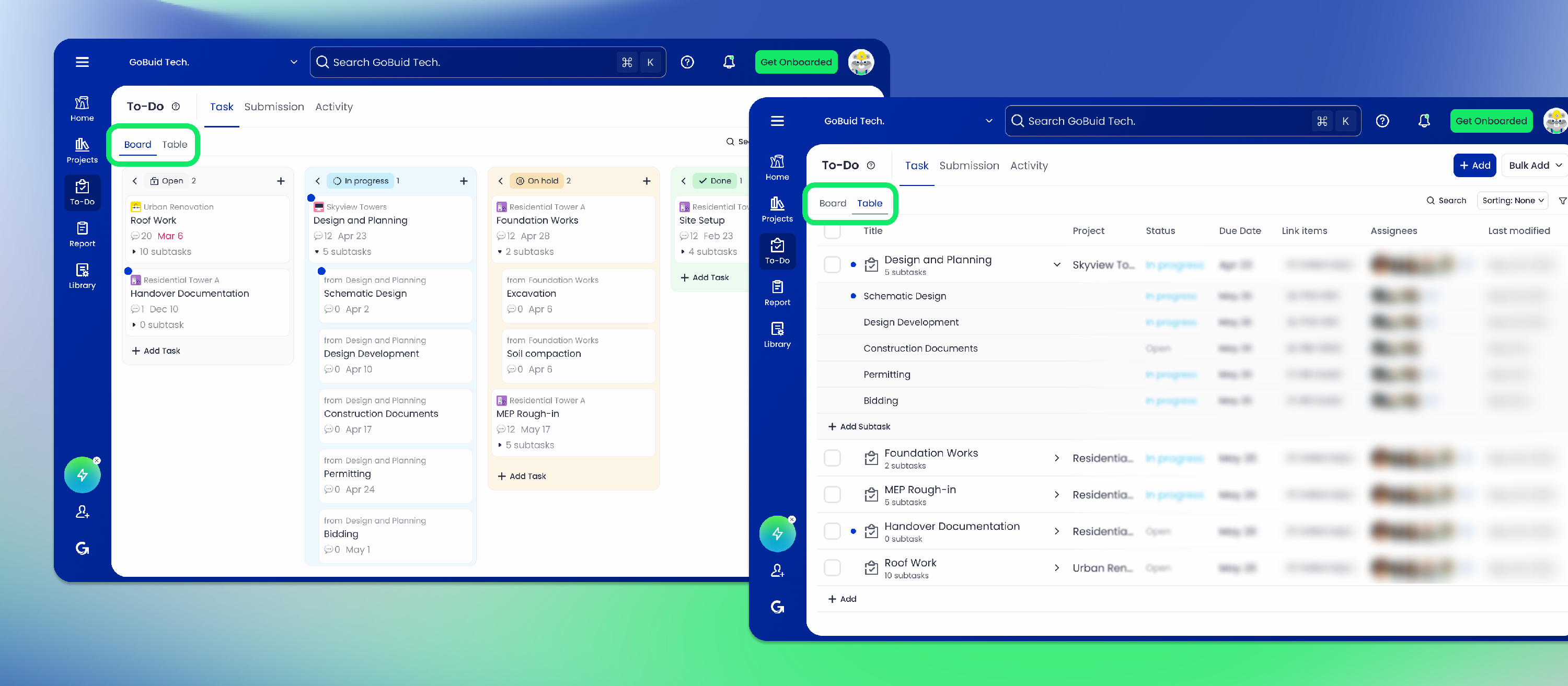
Use board view
Board view groups tasks by status, making it easier to see the current state of project work.
Board columns include:
- Open
- In progress
- On hold
- Done
In board view, you can:
- View tasks grouped by status
- Drag tasks to change their status
- Drag tasks to reorder them within a column
- See overdue indicators
- See due dates
- See assignees
- See subtask progress
Subtasks cannot be dragged separately.
Use table view
Table view is useful when you need to review or manage a larger number of tasks and subtasks.
In table view, you can:
- View all tasks and subtasks
- Sort tasks
- Filter tasks
- Review linked items
- Use bulk actions when available
Common table columns include:
- Task name
- Status
- Assignee
- Due
- Linked item
- Updated at
Filter and sort tasks
Filters help you find the work that matters most.
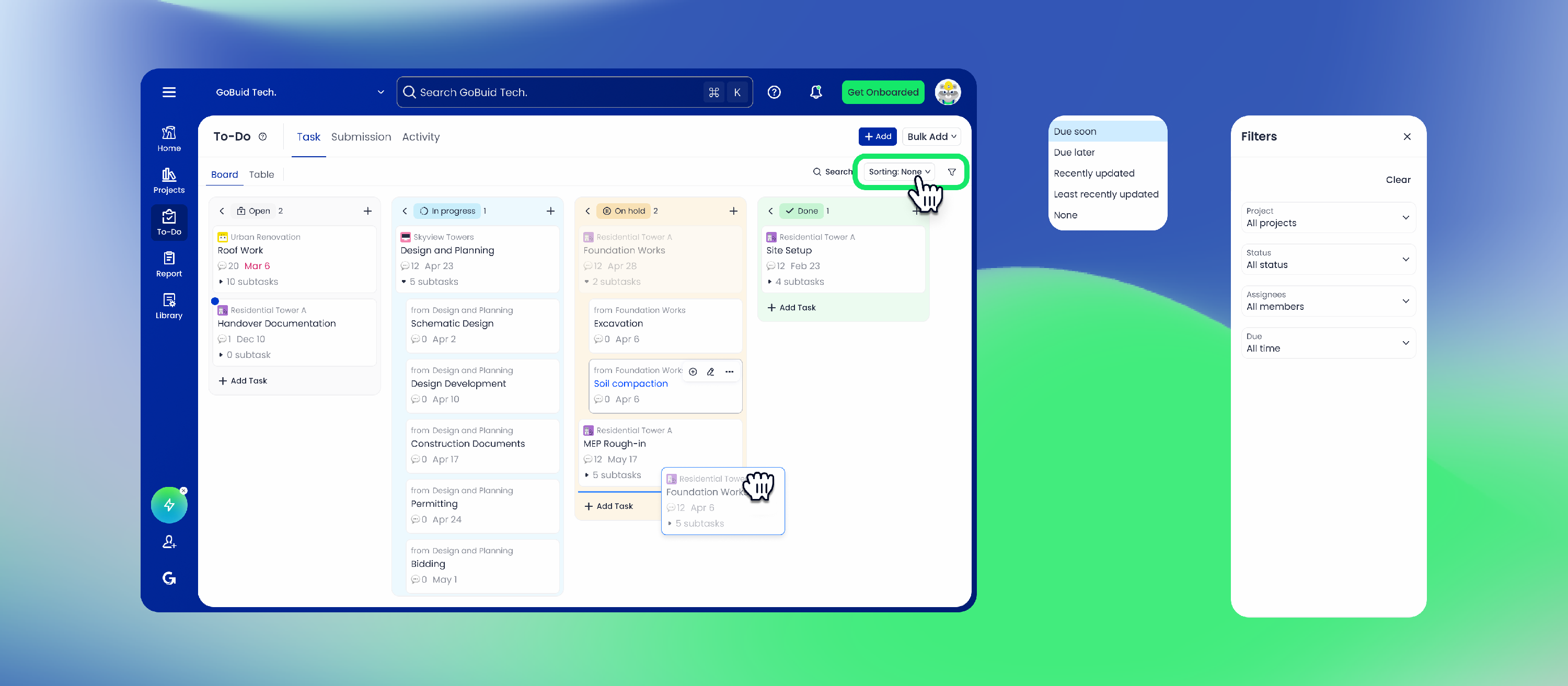
Status filter
The status filter applies to task status.
For example, selecting In progress shows tasks whose task status is In progress.
Due filter
The due filter checks both tasks and subtasks.
A task appears in the results if:
- The task due date matches the selected range, or
- Any subtask due date matches the selected range
Tasks or subtasks with no due date do not appear in due date filters unless you select No due date.
Assignee filter
The assignee filter checks both tasks and subtasks.
A task appears in the results if:
- The task assignee matches the selected person, or
- Any subtask assignee matches the selected person
Sorting
Task sorting is based on task-level results, with subtask information included when relevant.
Available sorting options include:
- Due soon / Due later: Uses the earliest due date from the task or its subtasks.
- Recently updated / Least recently updated: Uses the latest update time from the task or its subtasks.
- None: Keeps manual task order.
Tasks with no due date are placed last when sorting by due date.
Link tasks to submissions or activities
Use Link to to connect a task to another project record.
Tasks can be linked to:
- Submissions
- Activities
When selecting a linked item, To-Dos lists submissions and activities under the selected project.
Typical workflow
- Open a project and go to To-Dos > Task.
- Create a task.
- Add an assignee, status, and due date.
- Add optional details such as location, files, notes, or linked records.
- Add subtasks if the work needs to be broken down.
- Use Board view to move tasks between statuses.
- Use Table view to sort, filter, and review larger task lists.
- Team members update task or subtask status as work progresses.
- Managers review overdue tasks and follow up as needed.