1. Create and Export a Report
In this article
- Before you start
- Create a report
- Choose projects
- Add report fields
- Set field options
- Preview and export
- Save the report as a template
Before you start
You need permission to use Report for the selected project.
By default, users with the Manager project role can use Report. Your access may also depend on permissions for specific data types, such as Manpower, Equipment, Budget, or To-Do data.
Create a report
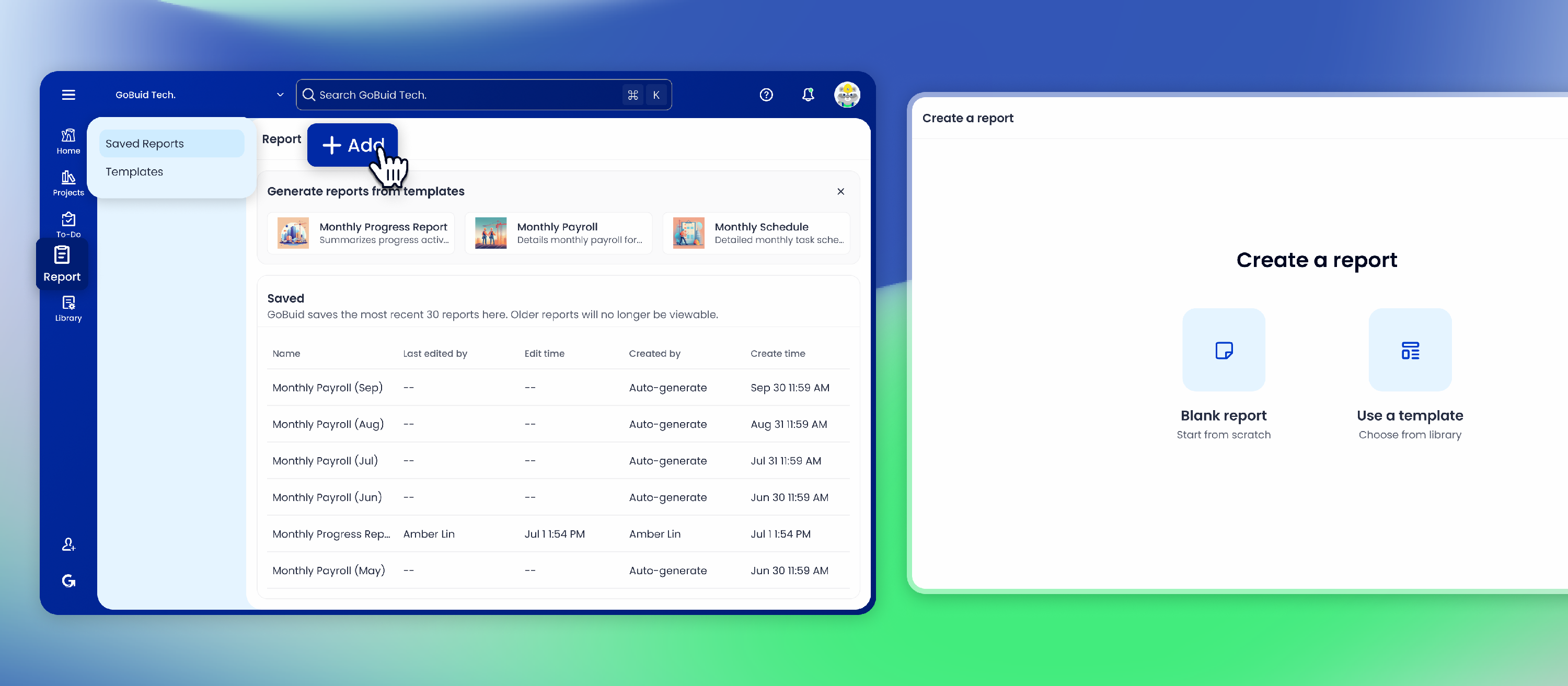
- Go to Report > Saved Reports.
- Select Add.
- Choose how you want to start:
- Template
- Blank report
- Enter or review the report name.
- Select the project or projects you want to include.
If you start from a template, GoBuid may prefill the report name and selected projects based on the template settings. You can only include projects you have access to.
Choose projects
You can create a report for one project or multiple projects.
When using a template, selected projects are based on the template settings. If you do not have access to some projects in the template, those projects are not included.
Add report fields
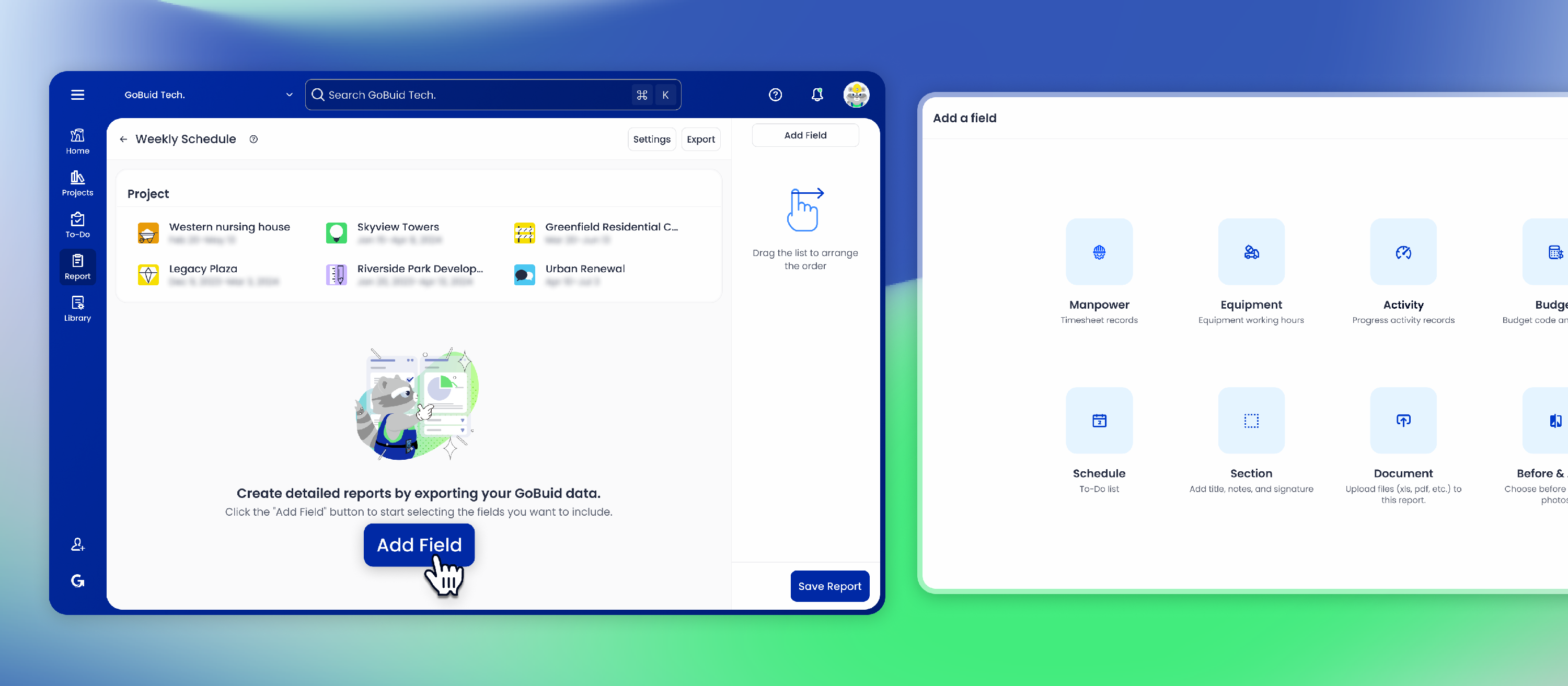
Add the fields you want to include in the report:
- Activity
- Manpower
- Equipment
- Budget
- Schedule
- Document
- Section
- Before & After
Feature-specific report examples are covered in each feature category.
Set field options
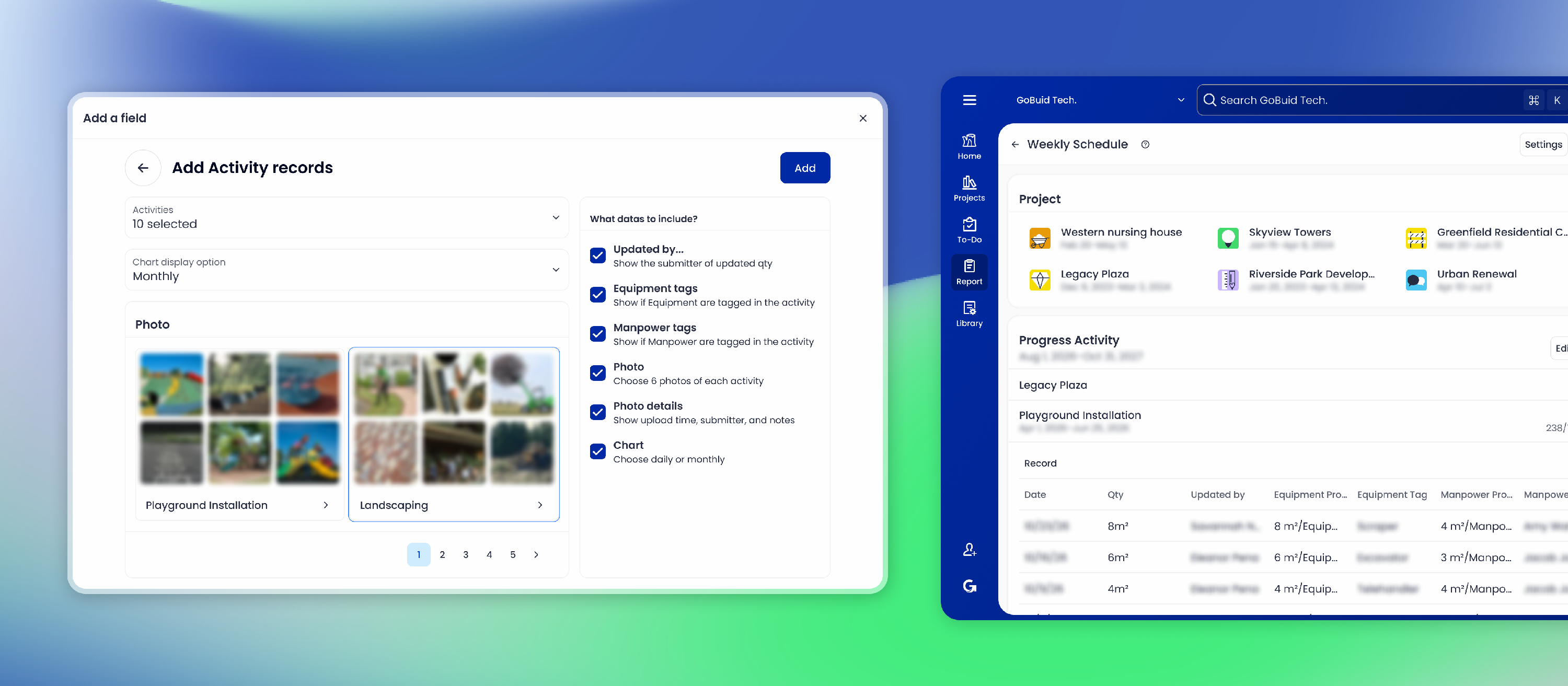
Each field has its own settings. Most fields let you choose a date range.
GoBuid includes records or events that actually happened during the selected date range. It does not mainly decide inclusion by an activity, task, or object’s planned start and end date.
If no records exist in the selected date range, that section shows an empty state instead of showing data from outside the range.
Preview and export
Before exporting, review the report content and layout.
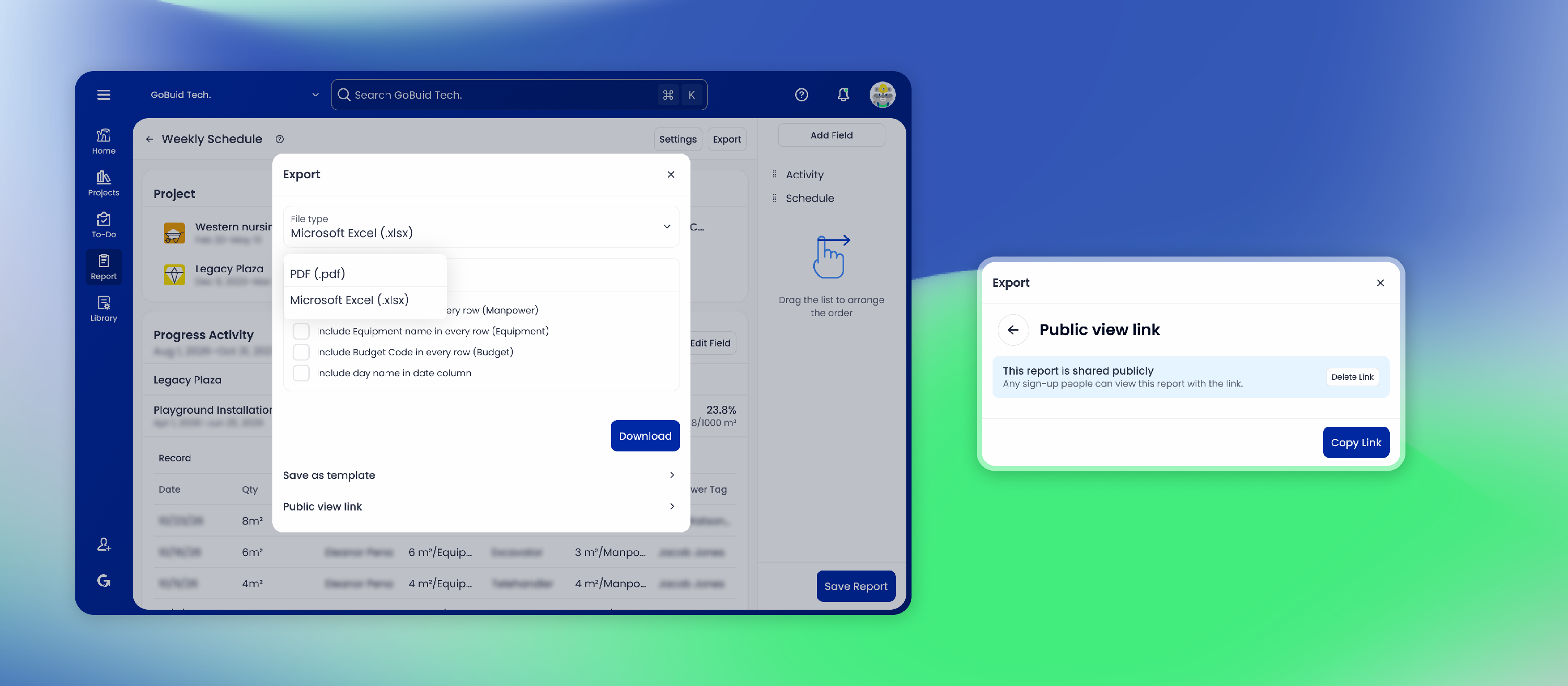
You can export or share the report by:
- Excel
- Public view link
For downloads sent by email, the download link is valid for 7 days.
Save the report as a template
After creating a report, you can save it as a template.
Choose where to save it:
- My Templates: For your own future use.
- Company Templates: For users in your company, depending on permissions.